 VapuAI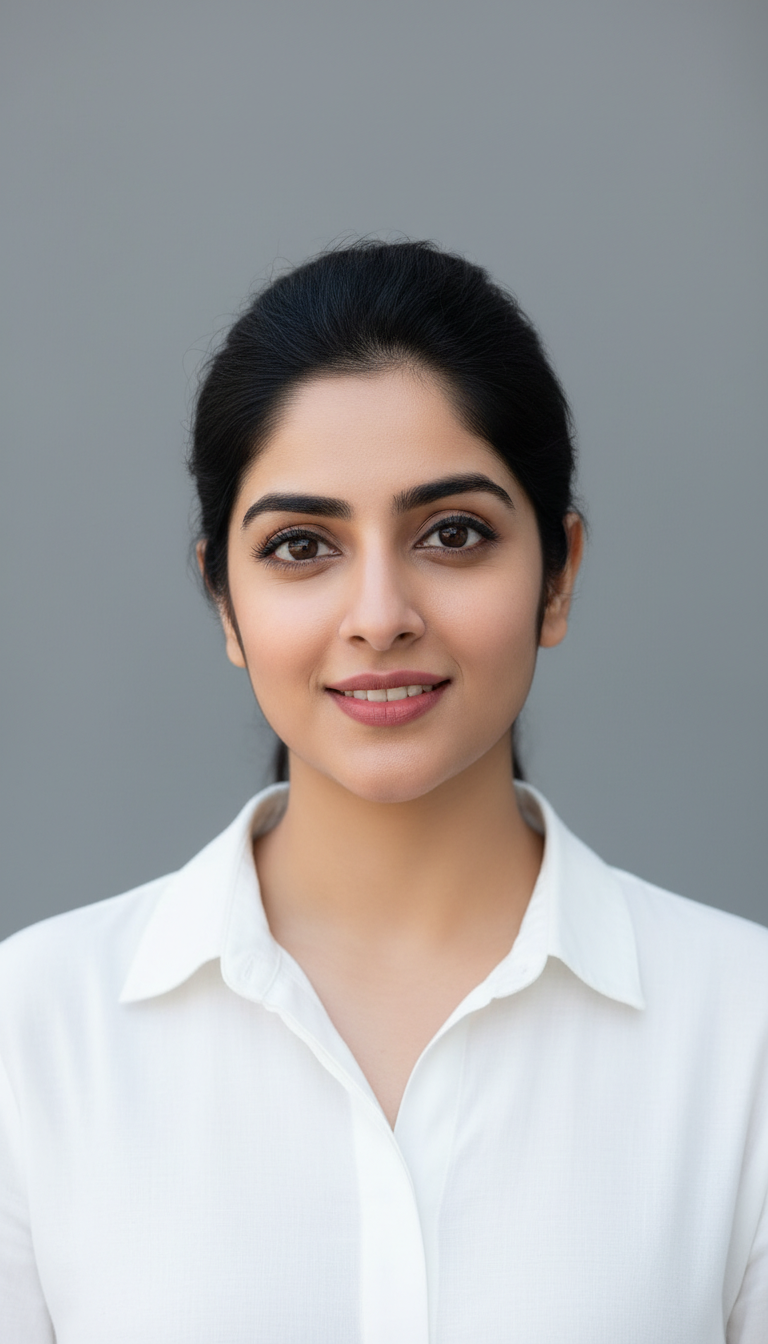
CRM Contact Avatar Optimized for Small Format
Clean small-format contact avatar for CRM and internal directories with increased contrast for clarity at thumbnail sizes and minimal retouching.
How Do You Create High-Contrast, Ultra-Clear CRM Avatars That Stay Sharp at 32px?
Maintain Employee Brand Consistency Across All Internal Slack, Salesforce, and HR Directories
The CRM Contact Avatar Optimized for Small Format template is an AI-powered portrait generator designed to produce ultra-clean, high-contrast professional headshots tailored specifically for micro-display sizes like CRM systems, chat apps, and internal company directories. By utilizing a high-contrast solid gray background and a tight 70% facial crop, this workspace ensures your team's faces remain perfectly recognizable even when scaled down to a tiny 32-pixel thumbnail. Every generation optimizes edge sharpness and midtone contrast, preventing the muddy, washed-out look that typical corporate portraits suffer from when compressed into small digital circles.
How to create it in VapuAI
- 1
Upload Identity Reference
Upload a clear front-facing photo of the subject to anchor their exact facial structure and features.
- 2
Choose High-Contrast Attire
Select a navy blue or white collared shirt to maximize visual separation from the solid gray background.
- 3
Apply Micro-Format Optimizations
Enable the low-retouch, high-contrast, and subtle edge sharpening filters designed specifically for small sizes.
- 4
Generate and Download
Run the generator to produce a perfectly cropped 70% face-ratio avatar ready for upload into your CRM platform.
Prompt & settings
Tips for best results
- •Stick to the recommended navy or white clothing options, as high-contrast collars prevent the avatar's neck from blending into the background at small sizes.
- •Avoid using reference photos with heavy jewelry or complex patterns, which can create visual noise and clutter the thumbnail.
- •Ensure the reference photo has direct, front-facing lighting to help the AI calculate the optimal catchlight position for maximum pupil definition.
- •Test the generated image by scaling your browser window down to 10% zoom to verify that facial features remain sharp and recognizable.
Best for
- HR and People Operations Managers who need to generate thousands of uniform, highly legible directory photos for global employee onboarding portals.
- Sales Operations Leaders looking to standardize Salesforce and HubSpot contact avatars so internal teams can instantly identify account owners at a glance.
- IT and Workspace Administrators tasked with bulk-updating Active Directory, Google Workspace, or Slack profile pictures with consistent, professional visuals.
- Creative Agencies designing custom internal portals for corporate clients who require pixel-perfect, small-scale avatar assets that do not blur.
- Product Managers building custom SaaS platforms who need standardized, high-contrast user profile placeholders that maintain visual integrity under heavy UI compression.
Frequently asked questions
Why does this template use a specific solid gray background?
This exact gray value provides optimal contrast for both light and dark UI themes, preventing the avatar from bleeding into white directory pages or black dark-mode interfaces.
What makes this different from a standard LinkedIn headshot?
Unlike standard headshots that feature wider chest-up crops and complex backgrounds, this template utilizes a tight 70% facial crop, enhanced midtone contrast, and edge sharpening specifically optimized for tiny thumbnail dimensions.
Does the AI heavily retouch or change the employee's face?
No, this template uses low-retouching settings that only clear temporary blemishes by 70% while preserving authentic facial structure, ensuring the avatar remains highly recognizable to colleagues.
Can I use custom clothing colors for corporate branding?
While you can customize the prompt, we strongly advise sticking to high-contrast colors like navy blue or white to ensure the shoulders and collar remain distinct at micro-resolutions.
More Templates in Professional Headshots
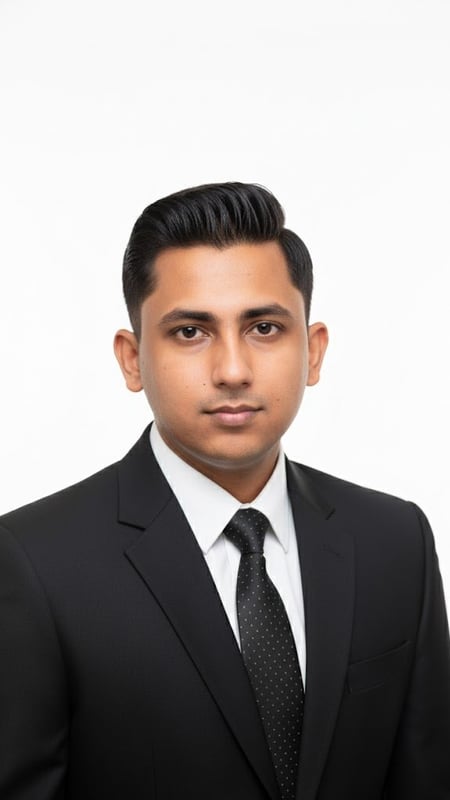
Professional Headshot | Formal Attire
Capture a clean, bright professional headshot in formal business attire. Ideal for LinkedIn, resumes, and corporate branding.
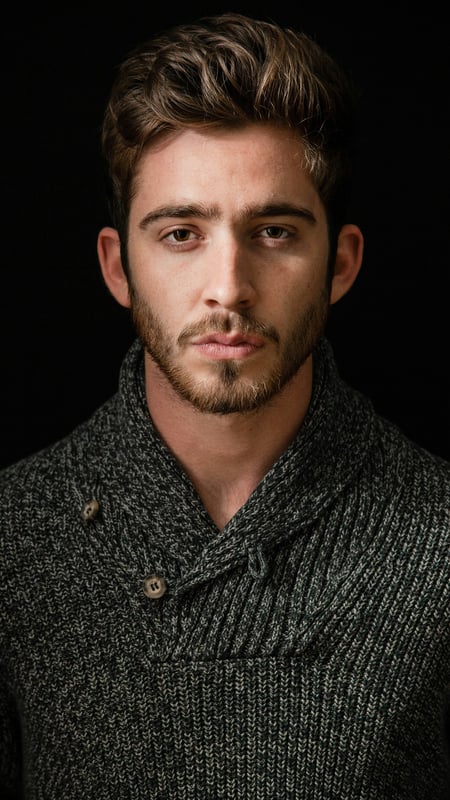
Dark Moody Headshot | Textured Knitwear
Create dramatic close-up portraits with deep contrast and rich knitwear textures. Perfect low-key AI photo template for editorial lighting.

Professional Business Portrait | Crossed Arms
Capture a full-body business portrait with confident crossed arms and clean studio lighting. Ideal for executives, resumes, and corporate branding.